Modify the Nav Menu
The Nav Menu is the main navigation for the Admin UI, located on the left-hand side when in desktop mode. It is used to provide top-level access to routes in the app, and can be extended and modified by UI extensions.
Extending the NavMenu
Once you have defined some custom routes, you need some way for the administrator to access them. For this you will use the addNavMenuItem and addNavMenuSection functions.
Let's add a new section to the Admin UI main nav bar containing a link to the "greeter" module from the Getting Started guide example:
import { addNavMenuSection } from '@vendure/admin-ui/core';

export default [
    addNavMenuSection({
        id: 'greeter',
        label: 'My Extensions',
        items: [{
            id: 'greeter',
            label: 'Greeter',
            routerLink: ['/extensions/greet'],
            // Icon can be any of https://core.clarity.design/foundation/icons/shapes/
            icon: 'cursor-hand-open',
        }],
    },
    // Add this section before the "settings" section
    'settings'),
];
Now we must also register these providers with the compiler:
import path from 'path';
import { VendureConfig } from '@vendure/core';
import { AdminUiPlugin } from '@vendure/admin-ui-plugin';
import { compileUiExtensions } from '@vendure/ui-devkit/compiler';

export const config: VendureConfig = {
    // ...
    plugins: [
        AdminUiPlugin.init({
            port: 3002,
            app: compileUiExtensions({
                outputPath: path.join(__dirname, '../admin-ui'),
                extensions: [
                    {
                        id: 'greeter',
                        extensionPath: path.join(__dirname, 'plugins/greeter/ui'),
                        routes: [{ route: 'greet', filePath: 'routes.ts' }],
                        providers: ['providers.ts']
                    },
                ],
            }),
        }),
    ],
};
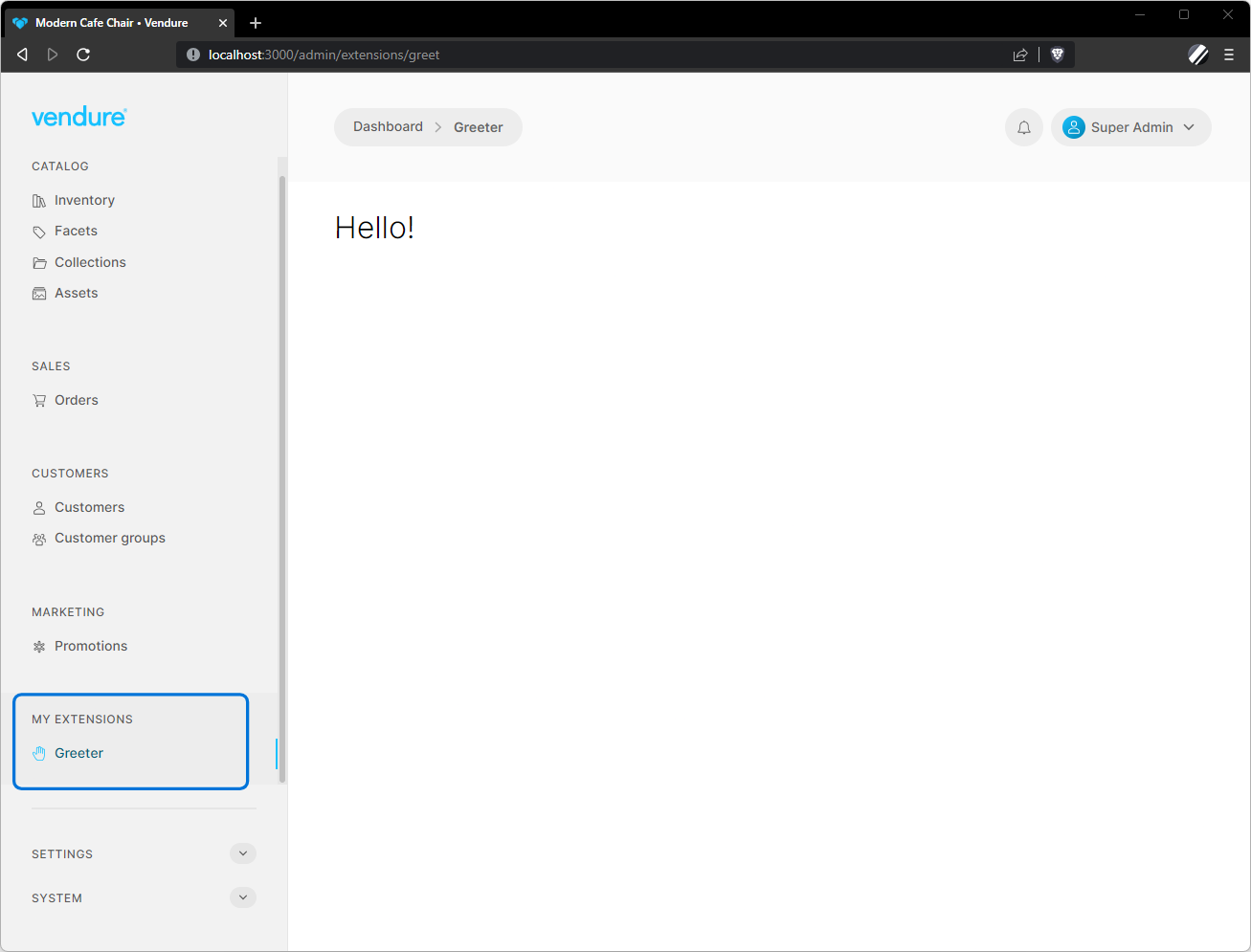
Running the server will compile our new shared module into the app, and the result should look like this:
Overriding existing nav items
It is also possible to override one of the default (built-in) nav menu sections or items. This can be useful for example if you wish to provide a completely different implementation of the product list view.
This is done by setting the id property to that of an existing nav menu section or item.